
Debian is my favorite Linux distribution. I installed it on my retired PC and use it as my server OS. I have used Debian for over a decade. It is free, open, and very stable. I use it to practice build many server, such as DNS, NAT, SMB, Website, Database, and so on.
In 2026, I will rewrite an article documenting my Debian usage. The first section will describe the process of installing Debian, and then I will write more articles about how to use Debian to set up various types of servers.
Now, I’m going to show you how to install Debian with VirtualBox. Here we go!
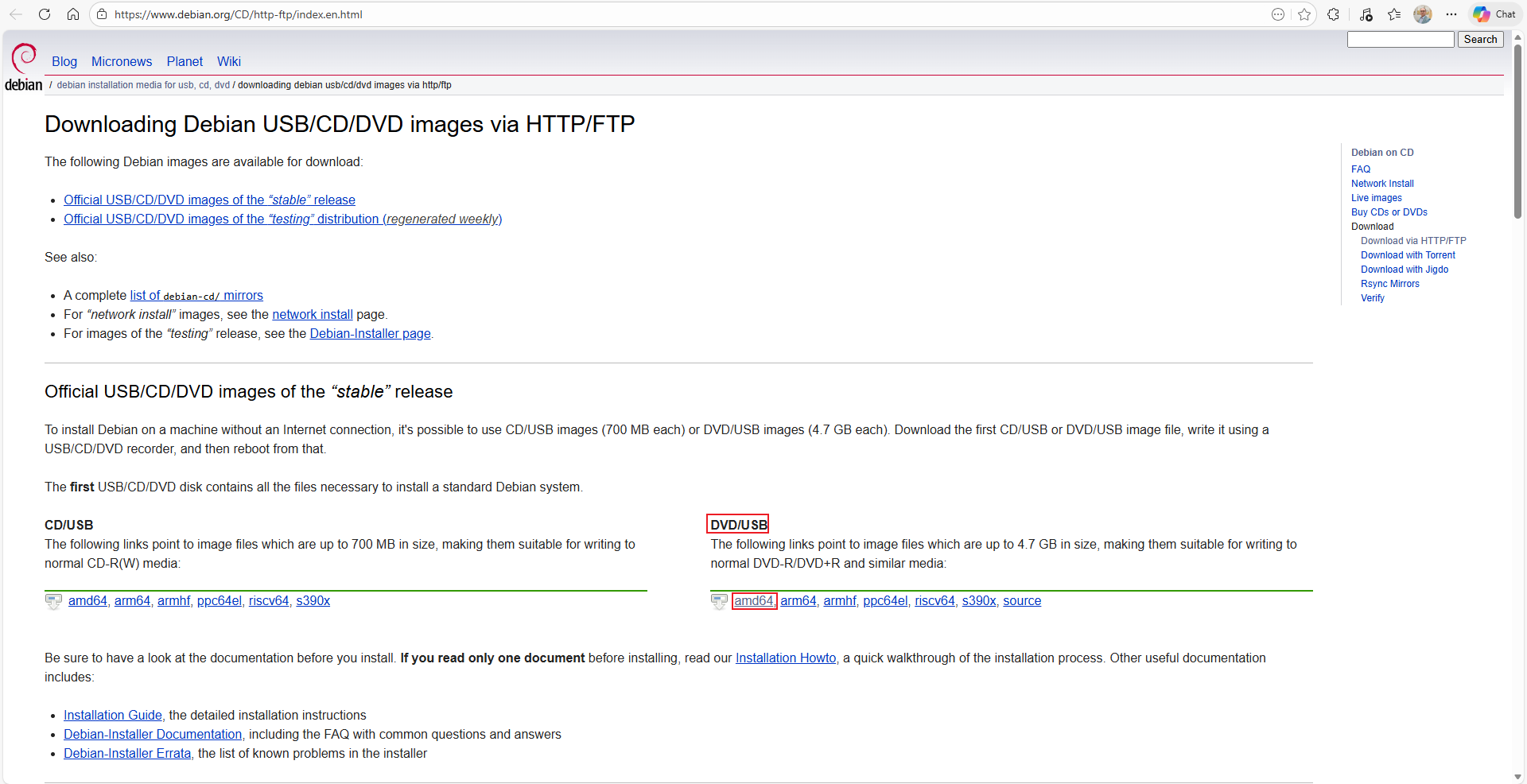
We need to get the Debian installation media from the official website first. I am providing the link, and you can click it to download.
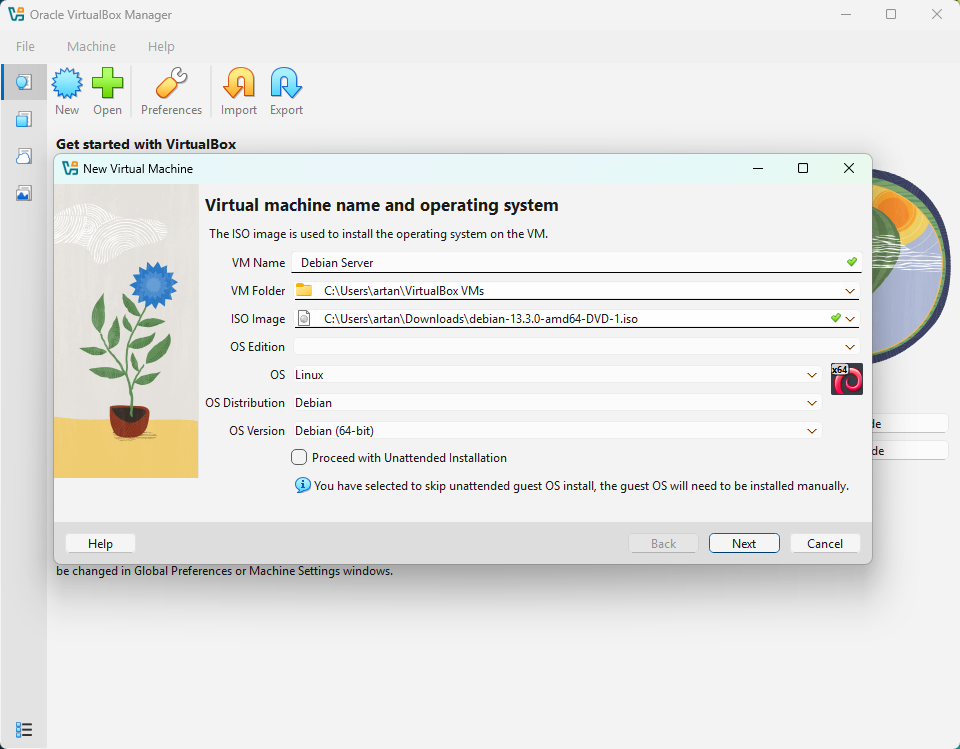
After downloading the installation media, open VirtualBox. We need to create a virtual machine. At this step, we do not need “Proceed with Unattended Installation,” so uncheck the box.
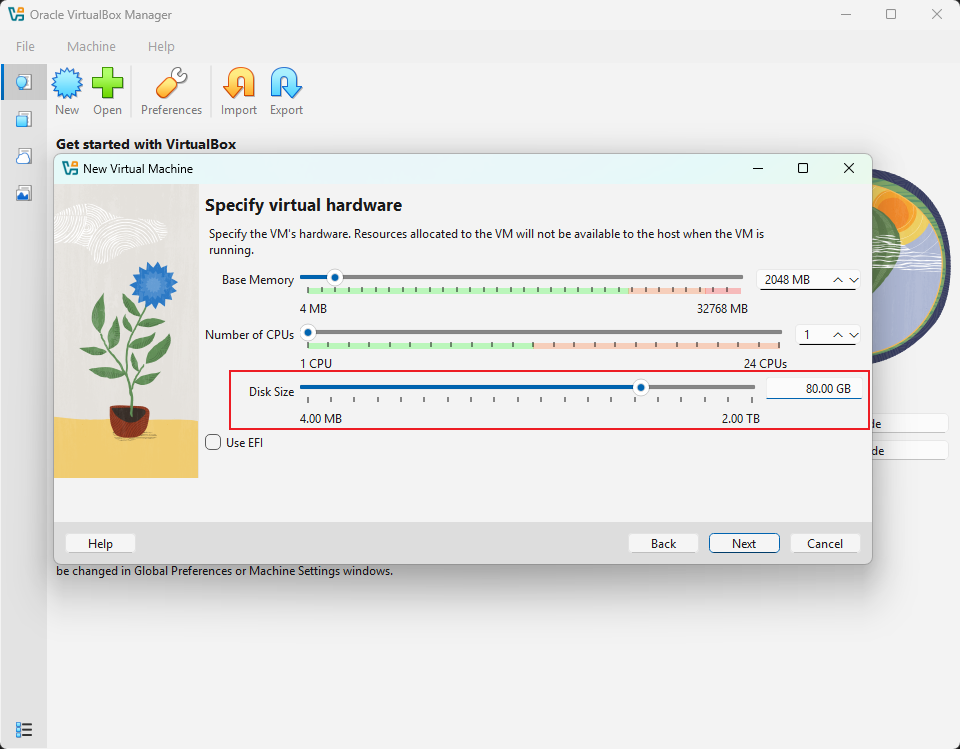
Next, configure the virtual hardware. I recommend increasing the disk size because we will need enough space to set up various types of servers.
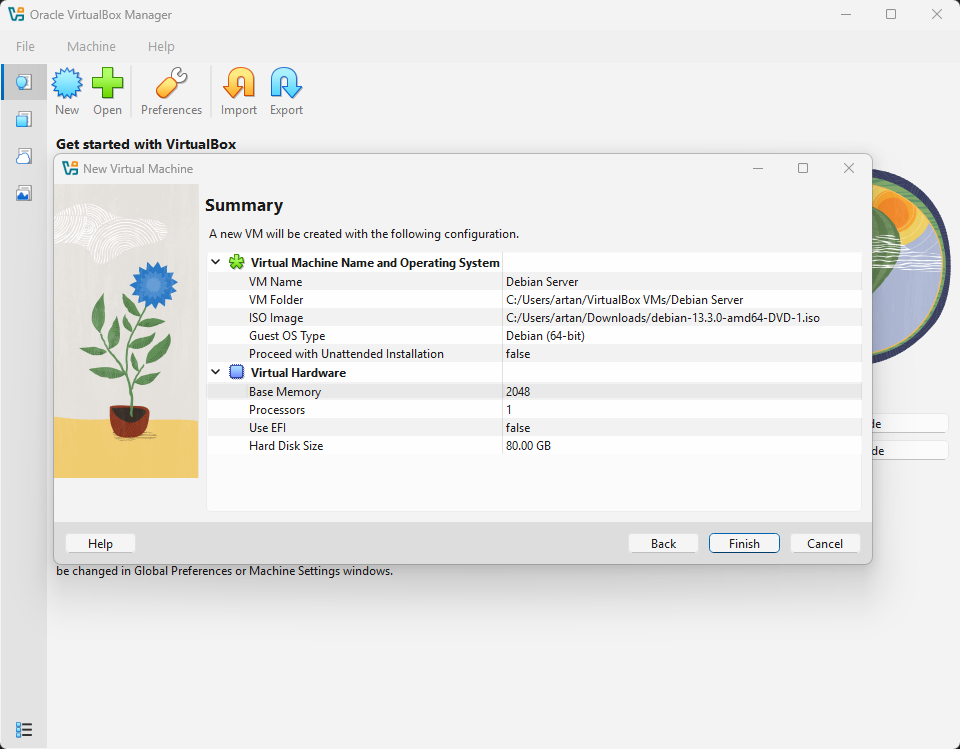
Click Finish to complete the creation of the virtual machine.
Now everything is ready, and we can begin installing Debian.
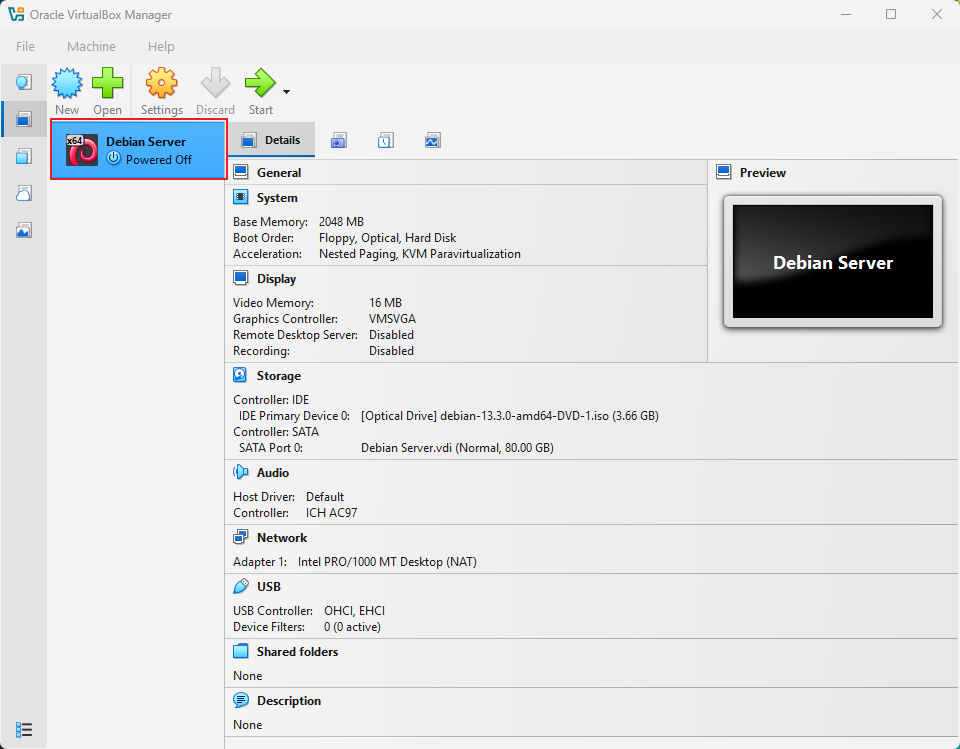
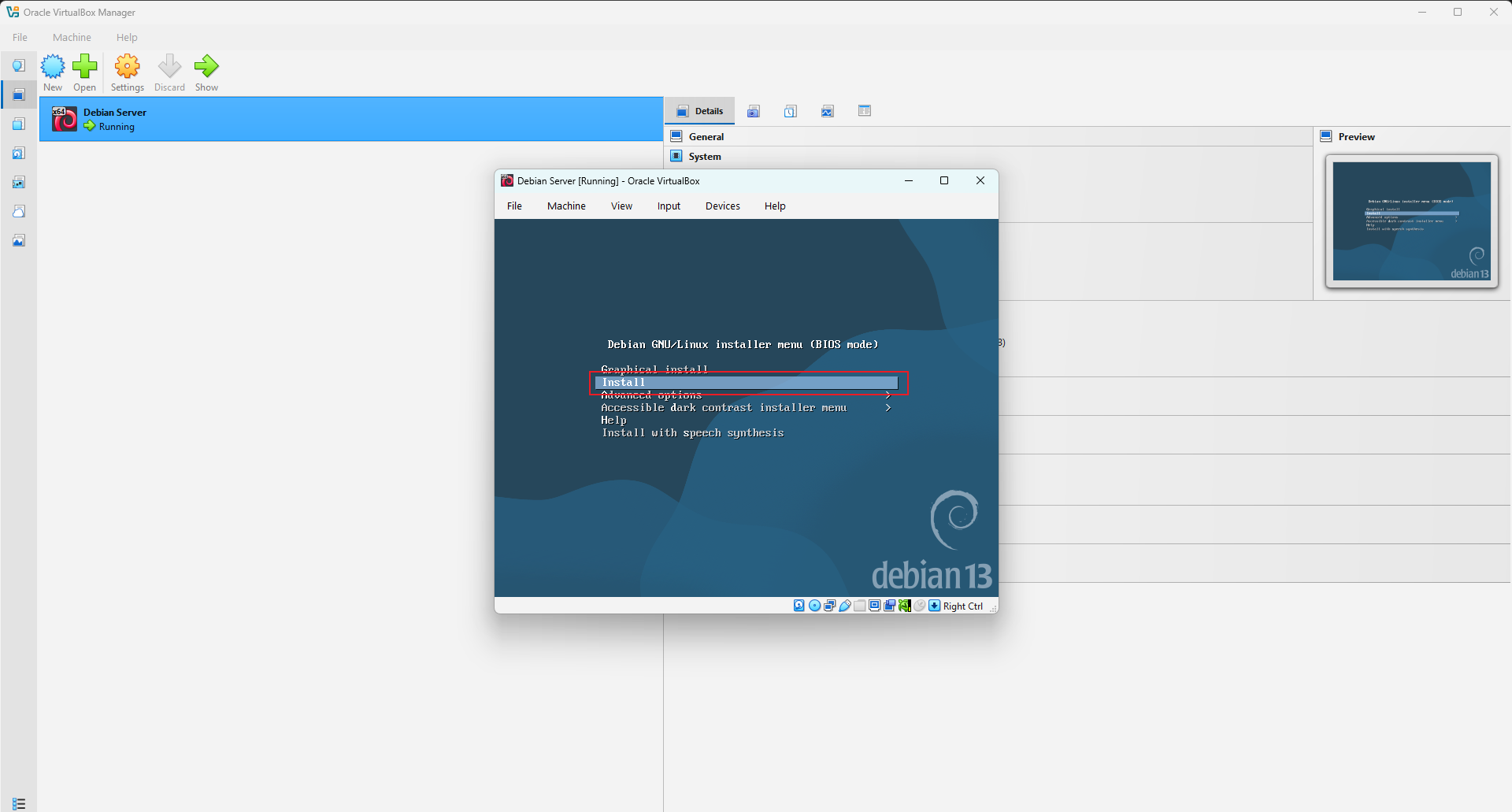
Click Start to power on the virtual machine, then select Install because I prefer using the text‑based installer.
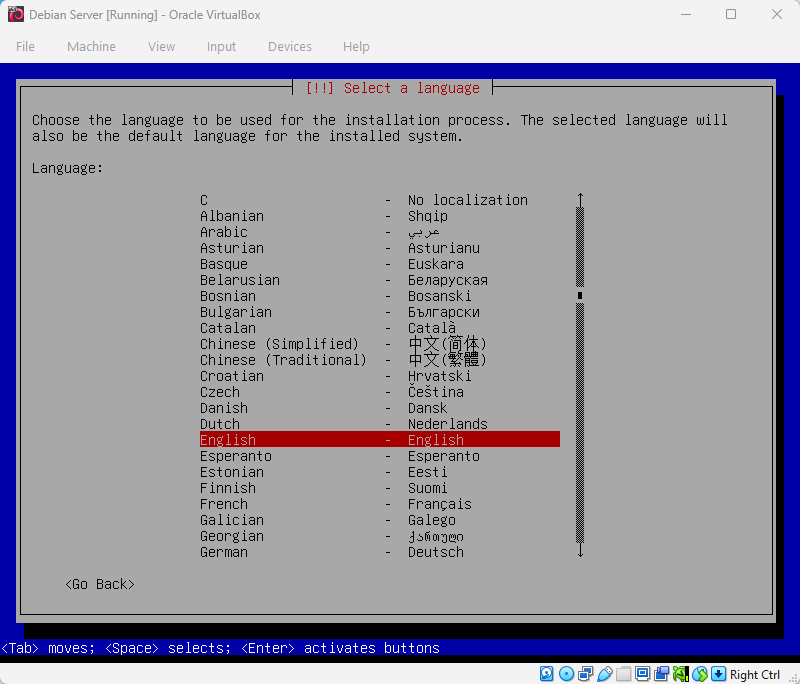
Select a language, and choose English.
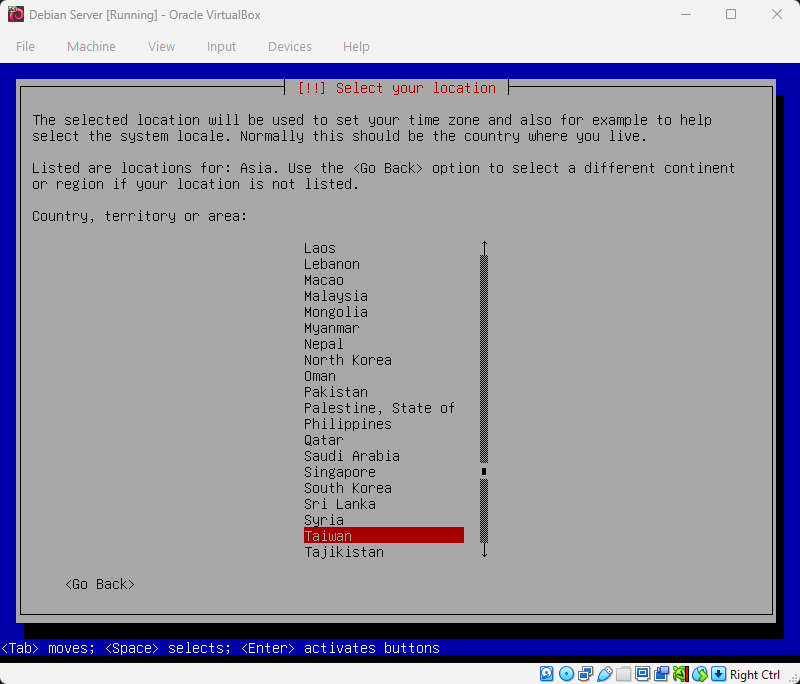
Select your location, and choose Taiwan.
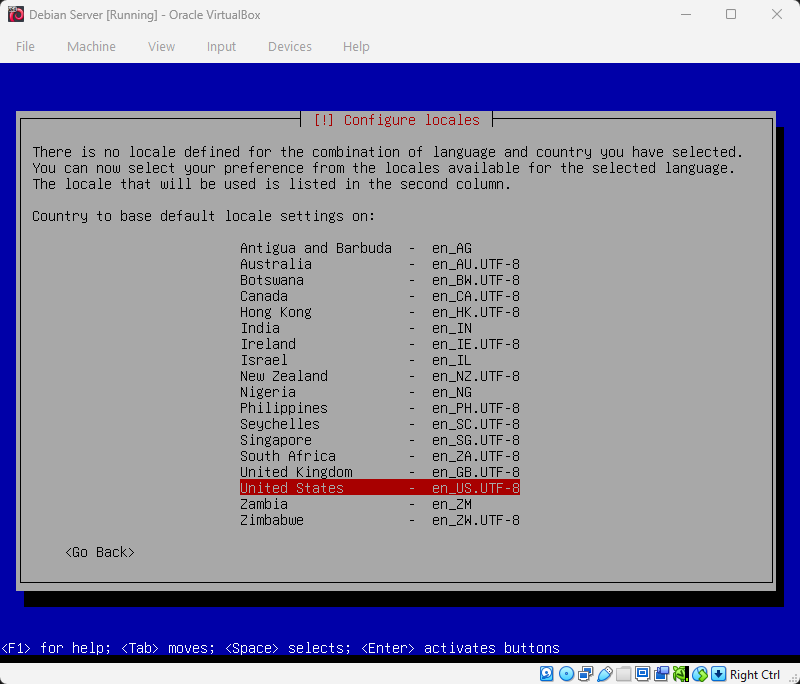
Configure locales, and choose United States.
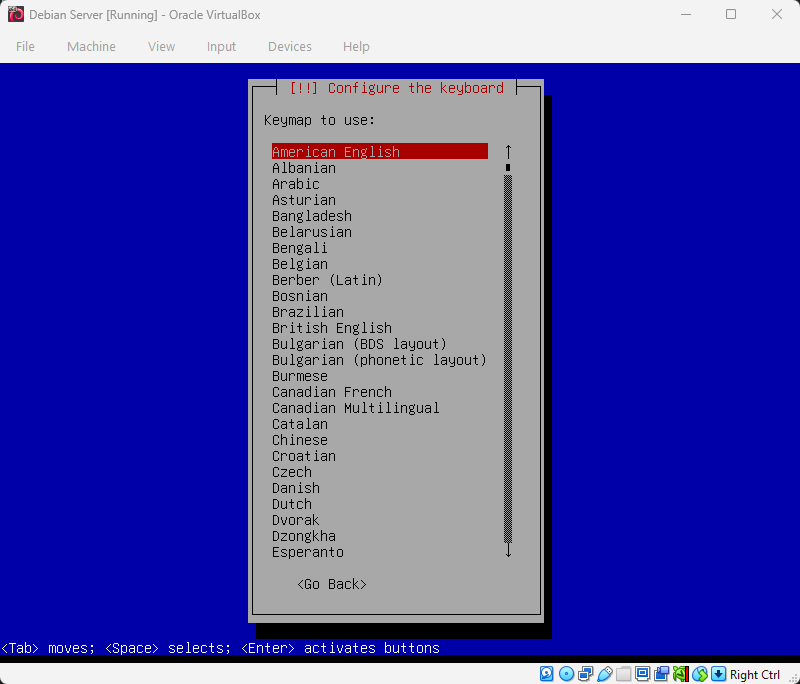
Configure the keyboard, and choose American English.
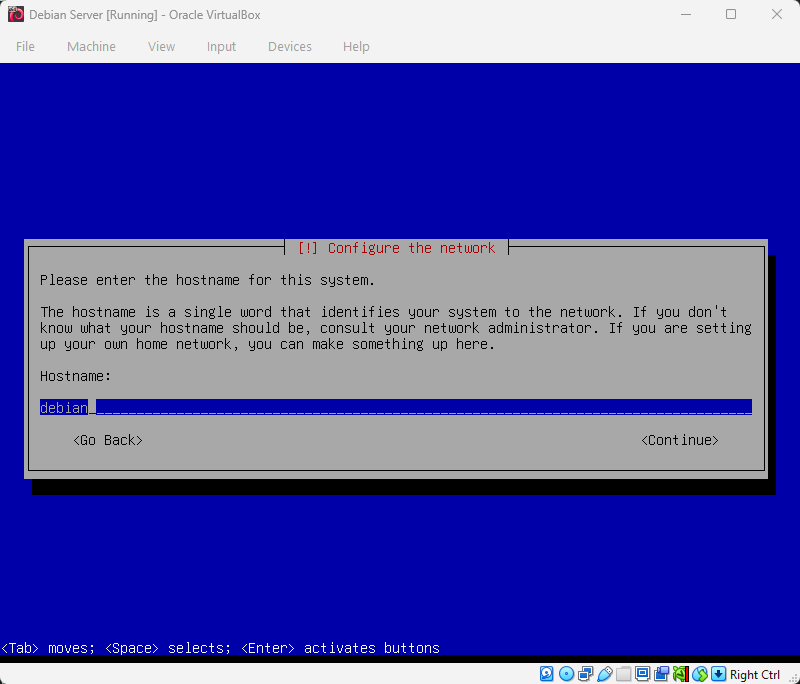
Configure the network, then enter a hostname.
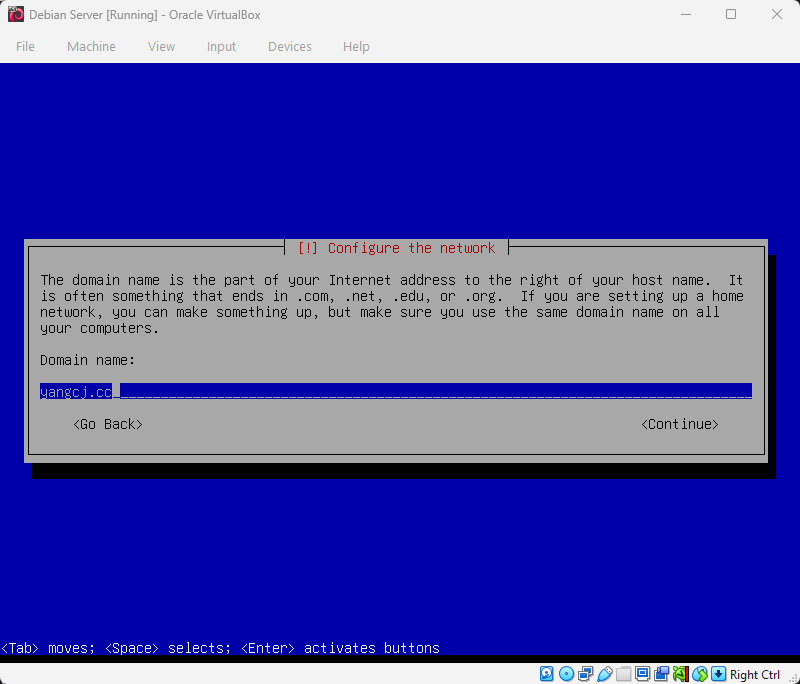
Configure the network again, then either leave the domain name blank or enter your own.
Enter the root password.
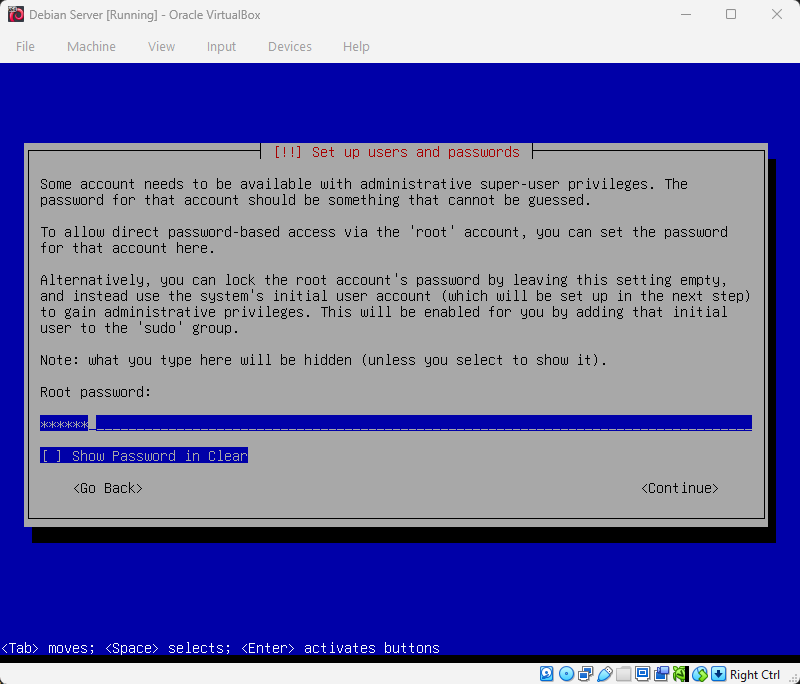
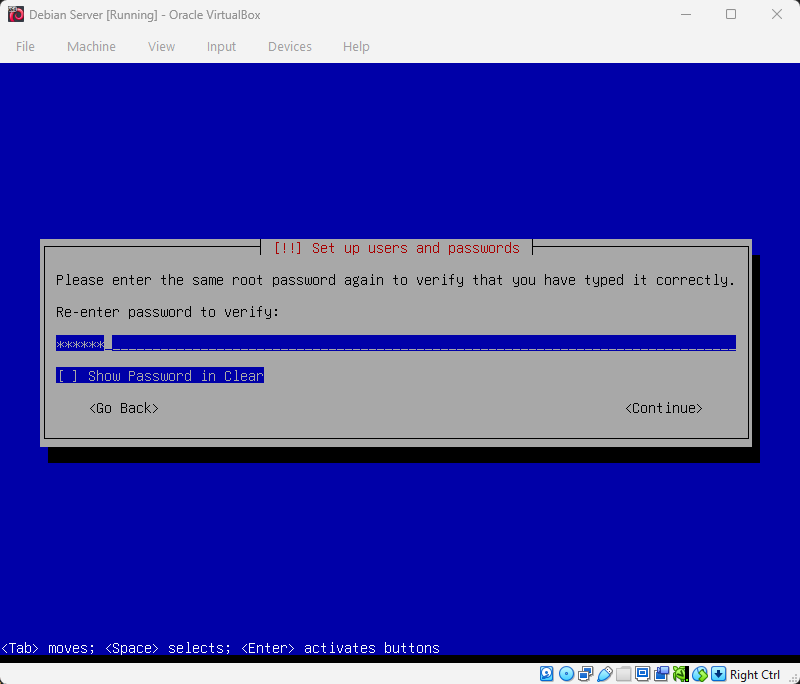
Re‑enter the root password.
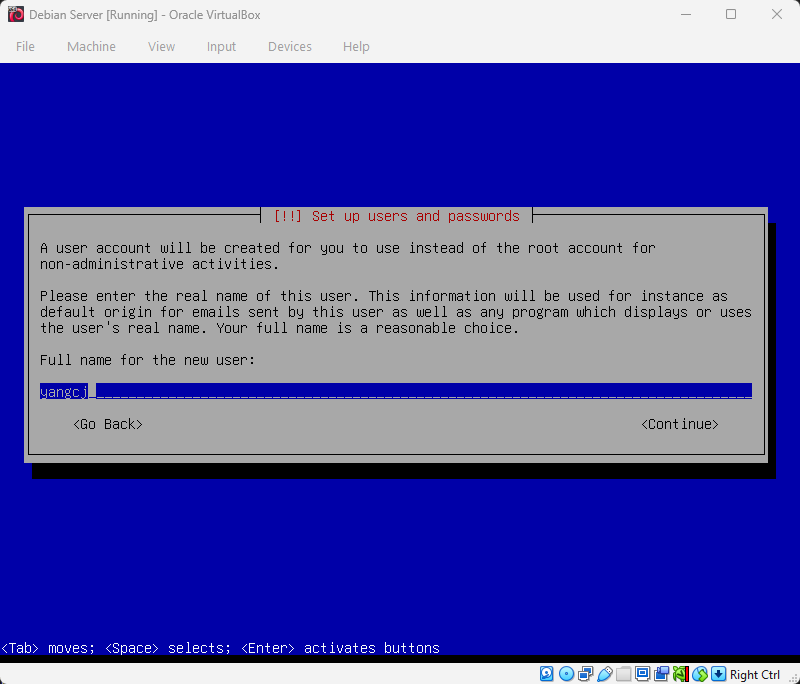
Enter your full name.
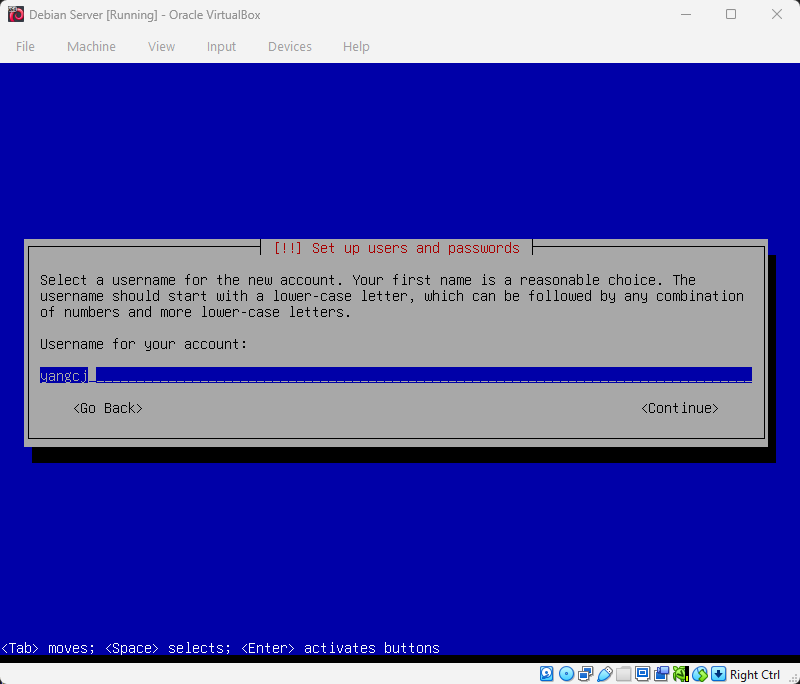
Enter your username.
Enter the password for your account.
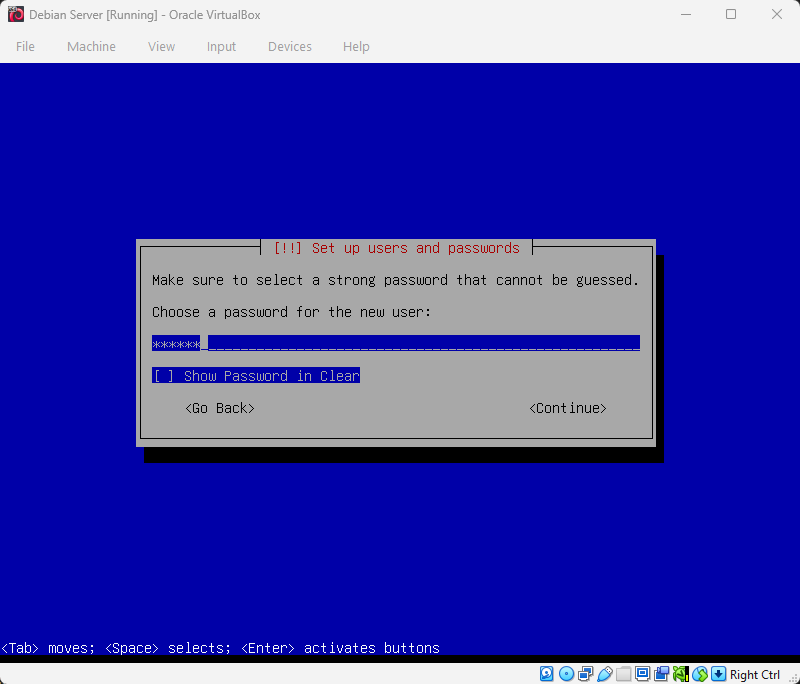
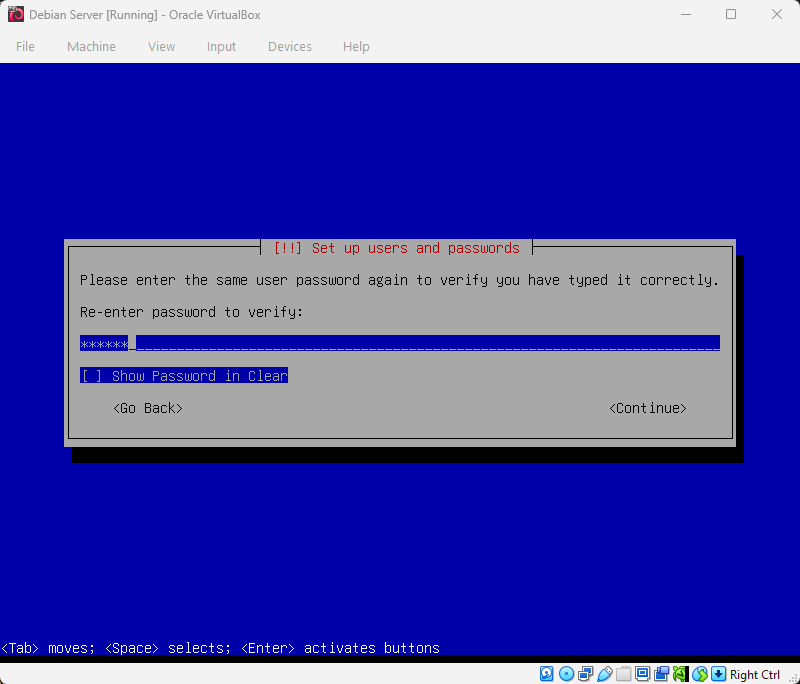
Re‑enter the password.
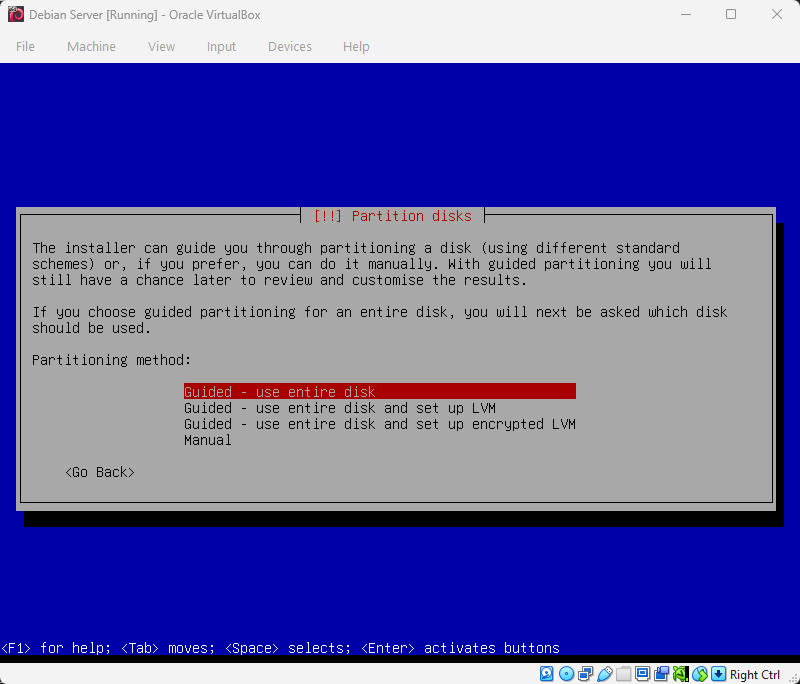
Choose Guided – use entire disk.
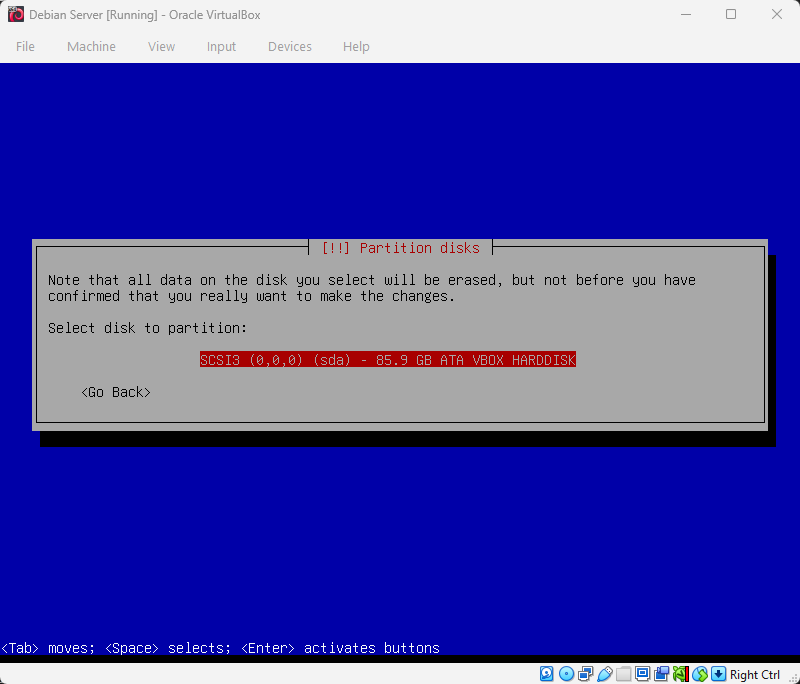
Press Enter to continue.
Choose All files in one partition (recommended for new users).
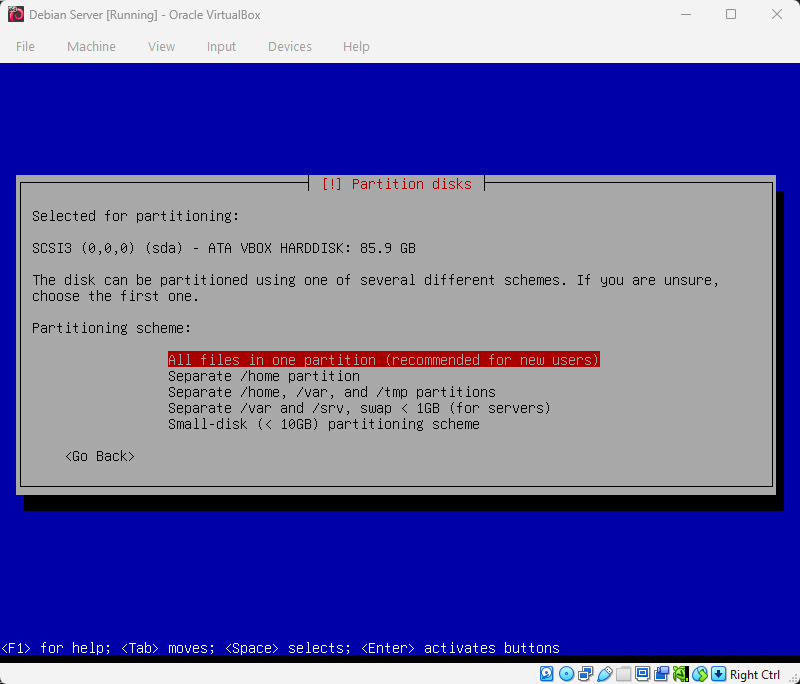
Choose Finish partitioning and write changes to disk.
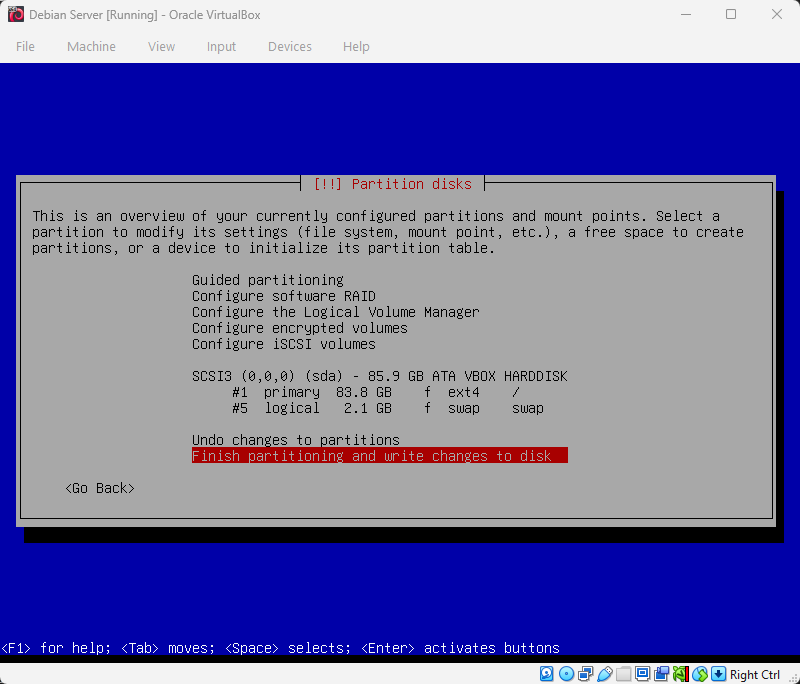
Choose Yes.
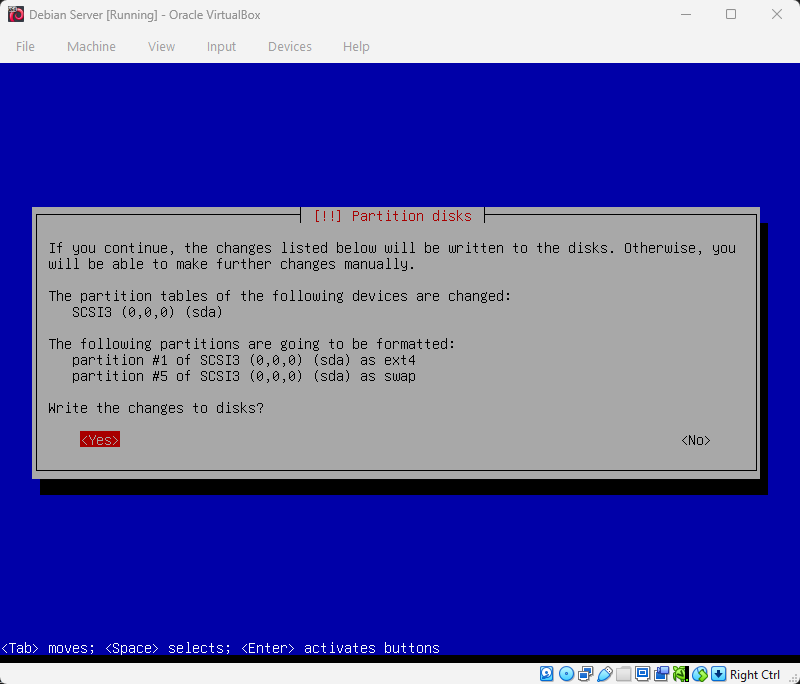
Choose No when asked to scan extra installation media.
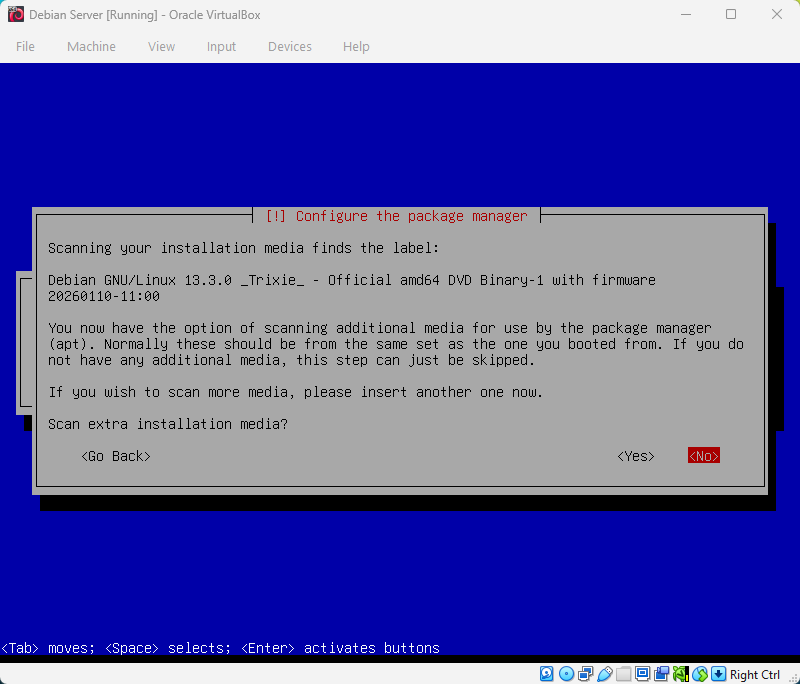
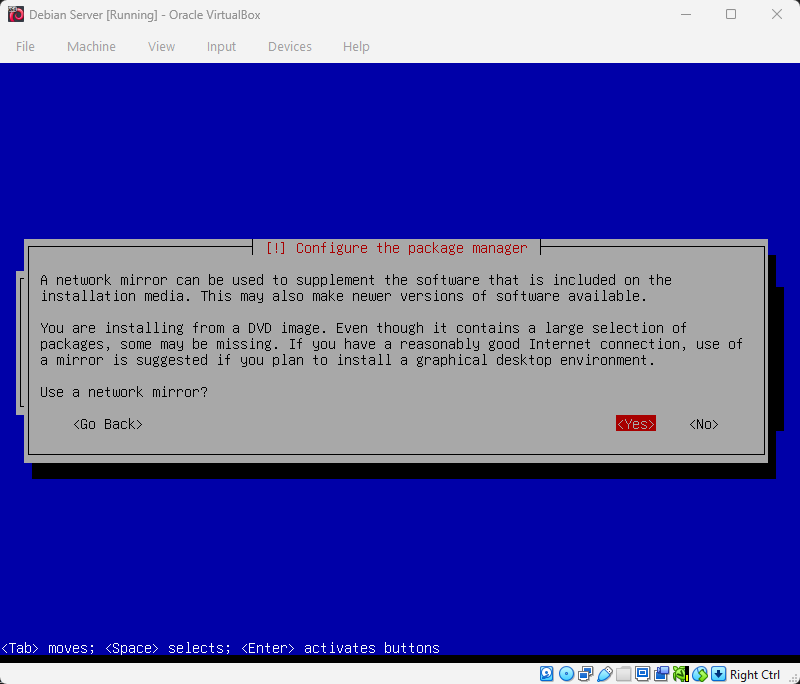
Choose Yes to use a network mirror.
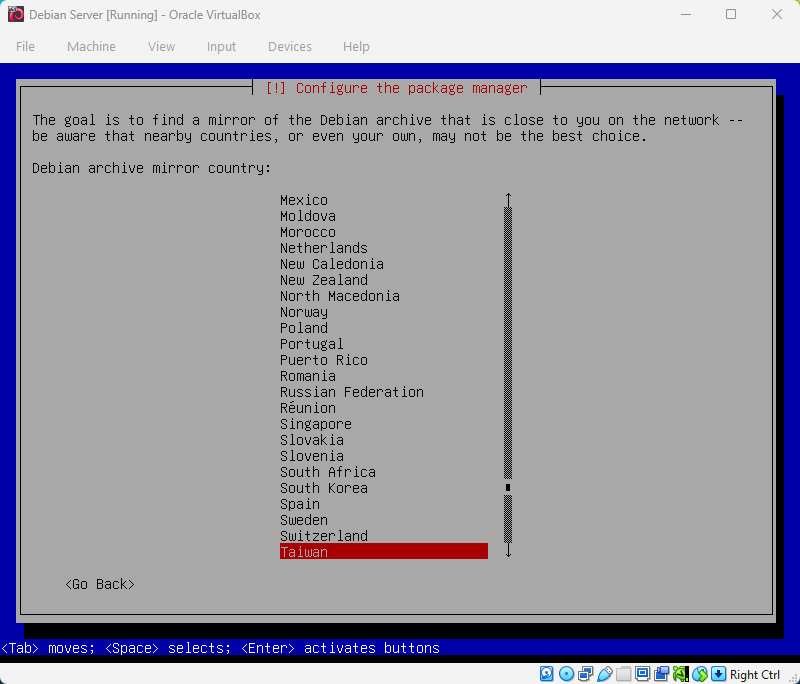
Choose Taiwan.
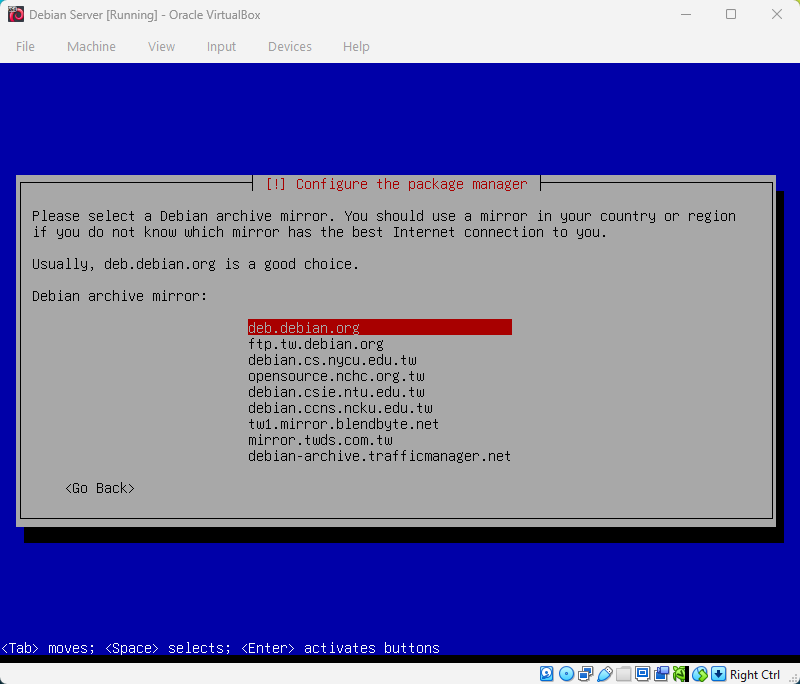
Choose any mirror you prefer.
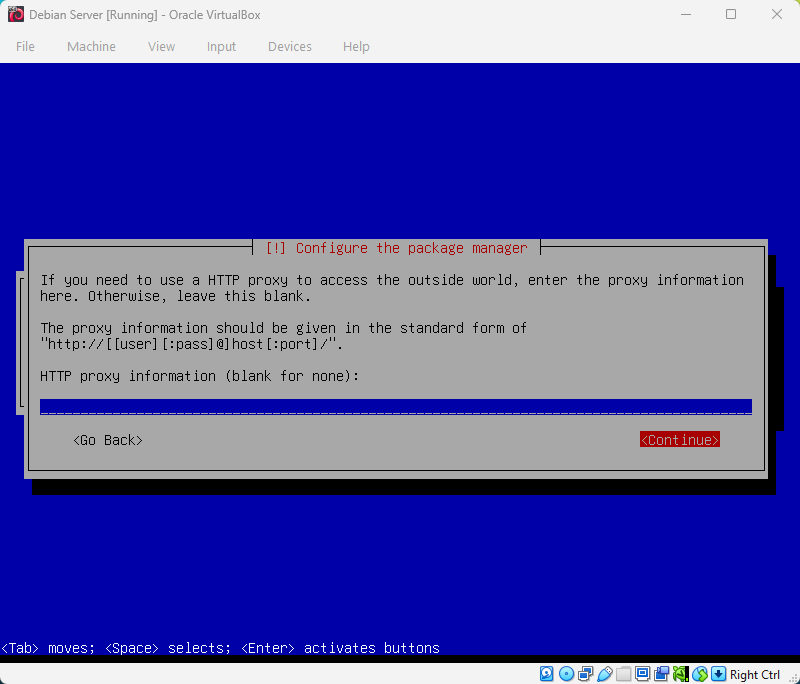
Leave the proxy field blank.
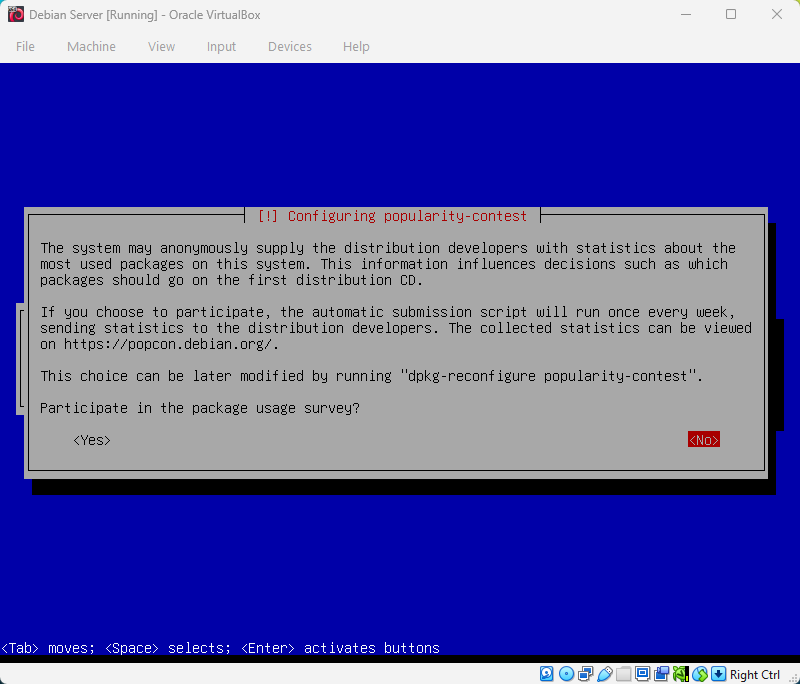
For popularity‑contest, choose No.
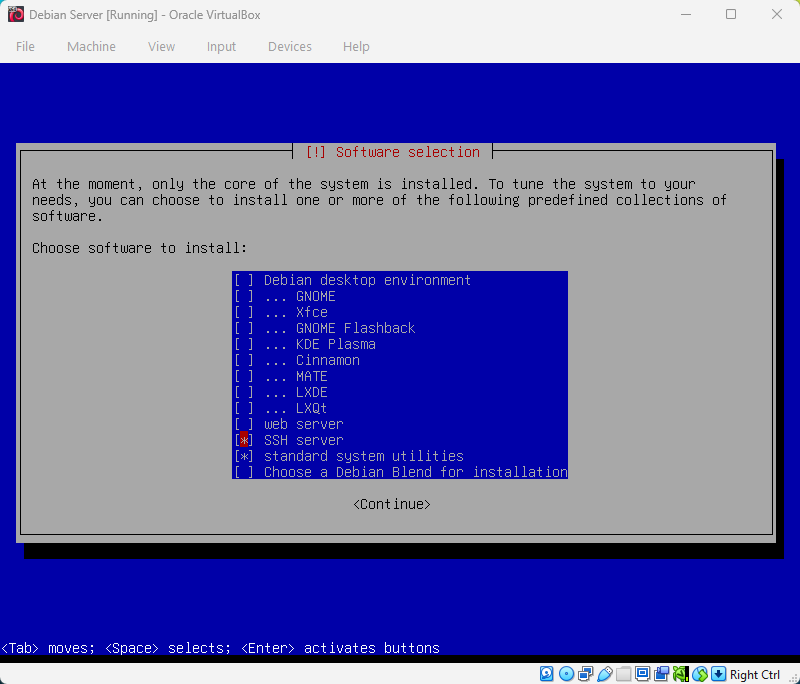
For software selection, choose SSH Server and standard system utilities.
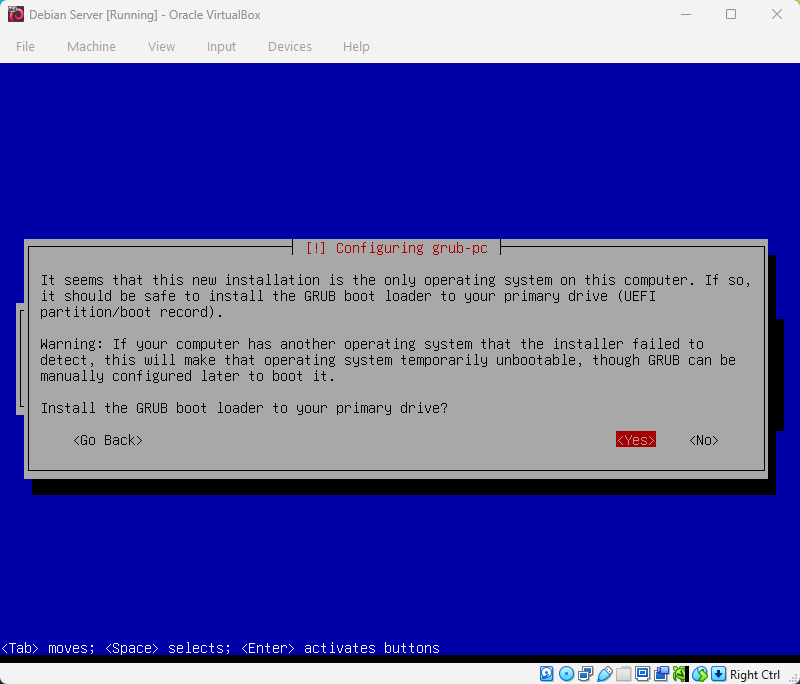
For GRUB installation, choose Yes.
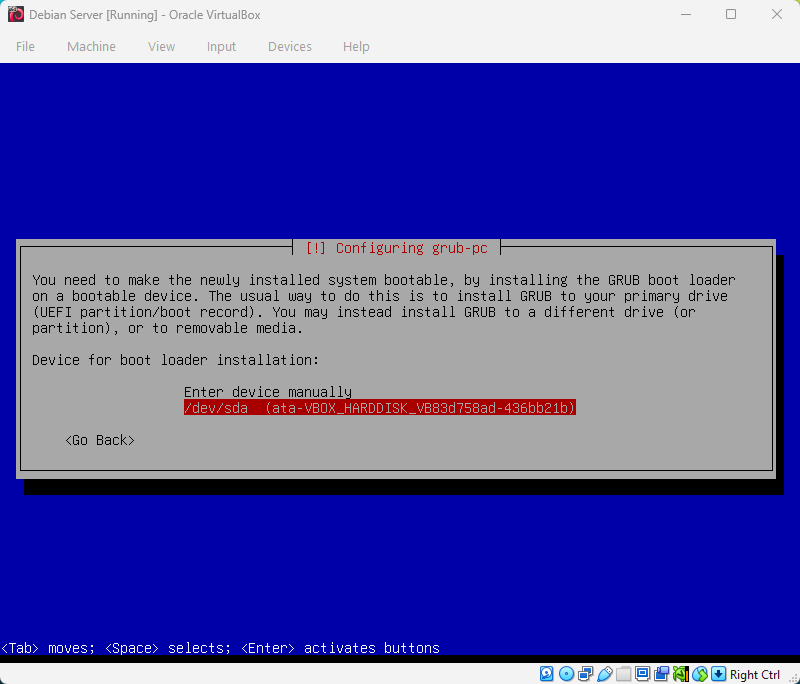
Select /dev/sda.
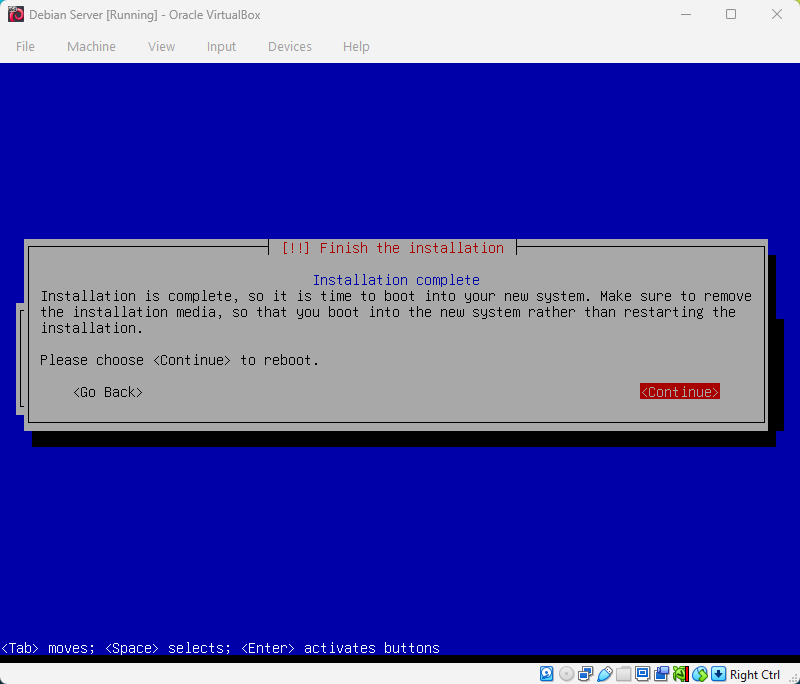
Choose Continue to reboot.
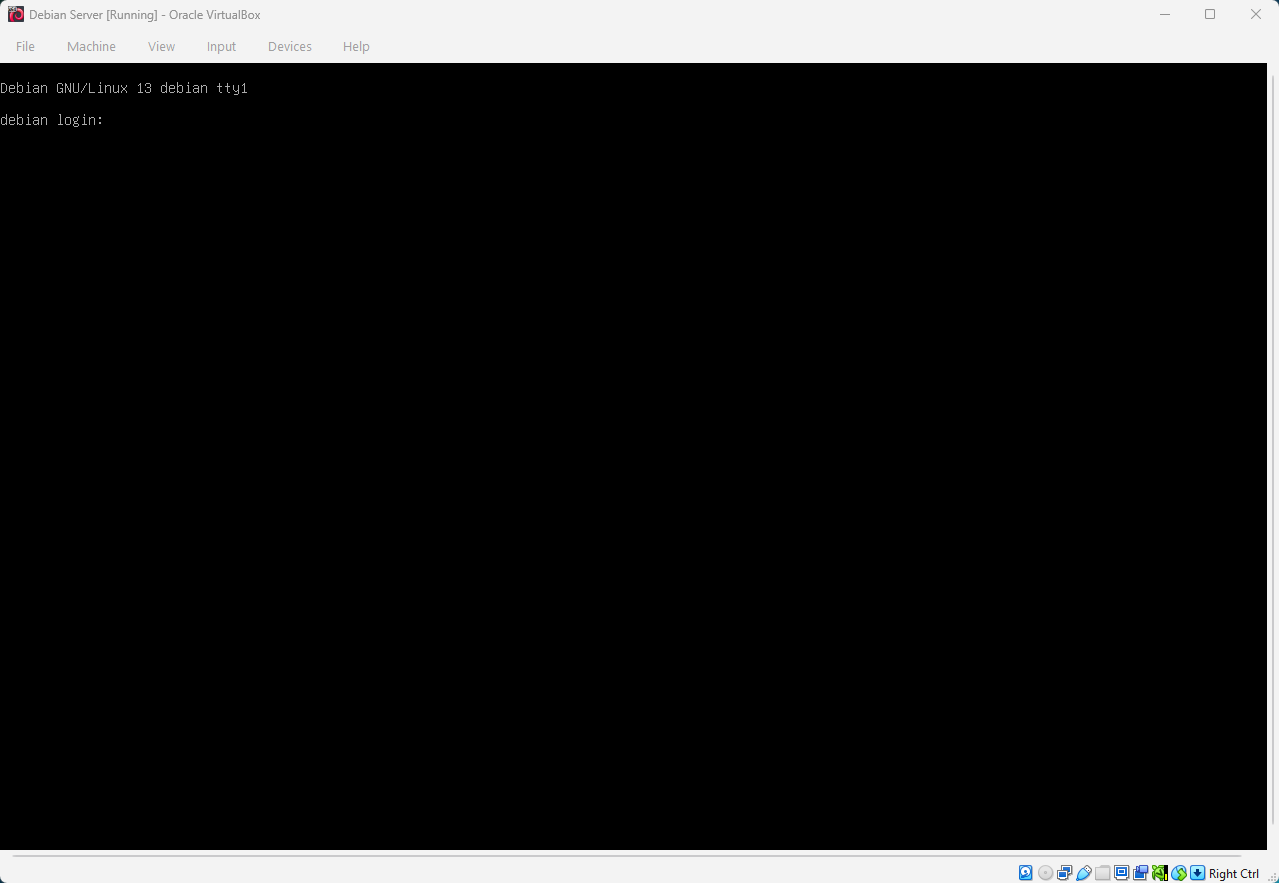
Now you have a working Debian virtual machine.
I will share more Debian‑related articles in the future.